Shopify blog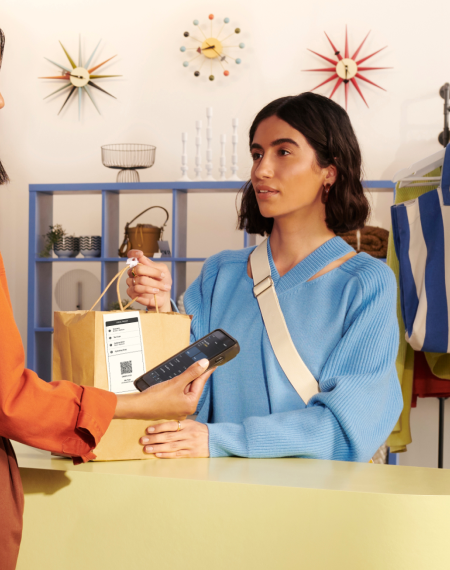


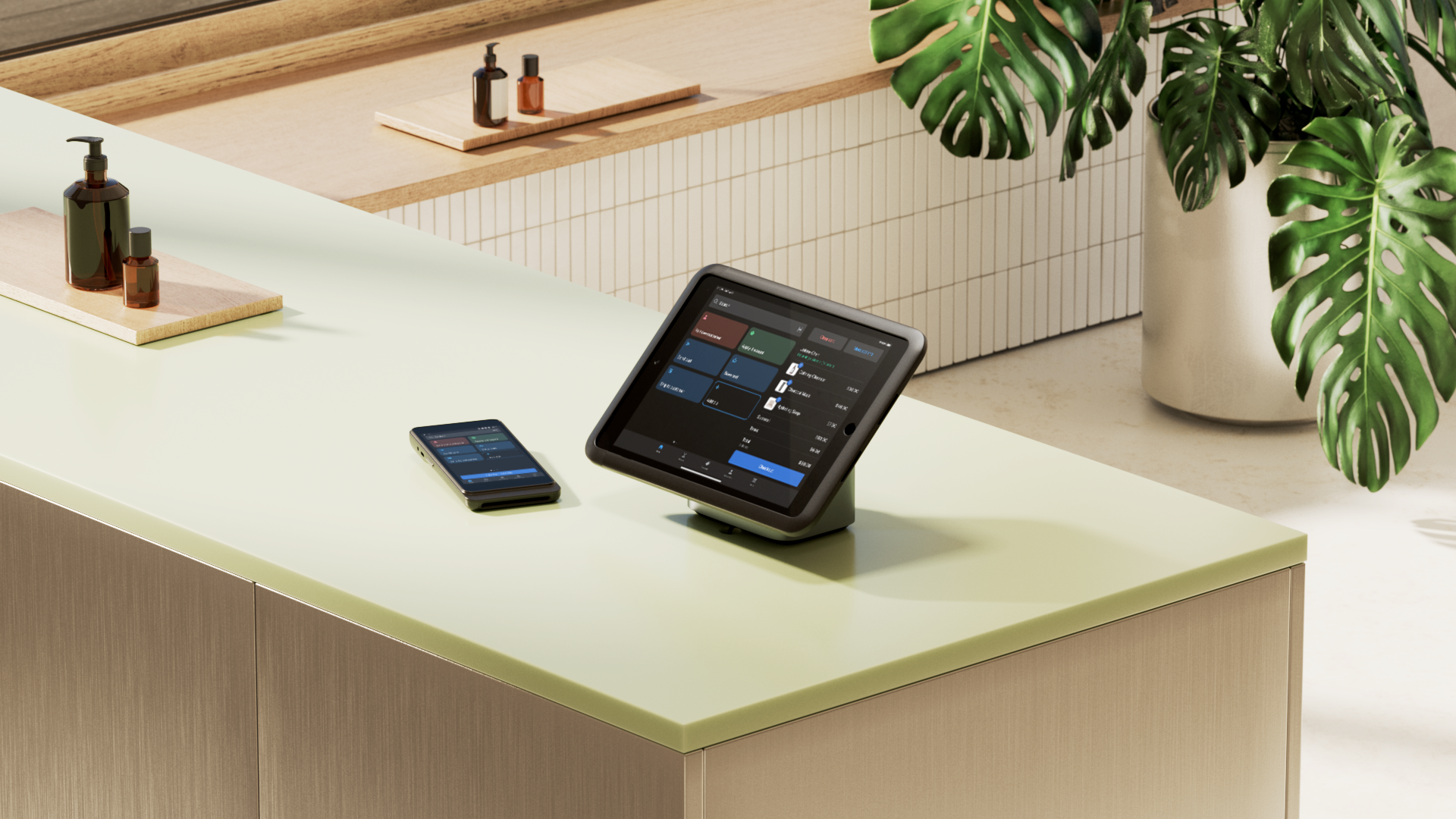
Improve clarity and speed up checkouts with a customer-facing display POS. These screens show shoppers their cart items, total costs, and receipt options during the transaction.
Customer-facing displays collect retail payments and process purchases. They provide transparency by showing order details to the customer before they pay.
This guide explains how to determine if your store needs a customer-facing display and how to set one up.
What is a customer-facing display?
A customer-facing display is a screen visible to shoppers at the checkout desk.
It shows information about their purchase, such as the products they’re buying, their cost, taxes, and payment options.
There are different types of customer-facing displays:
- POS with swivel stand. Staff turn the same POS display screen toward the customer so they can review totals and complete payment.
- Dedicated device. Cashiers use a POS system device to ring up the sale, while a separate screen faces the customer.
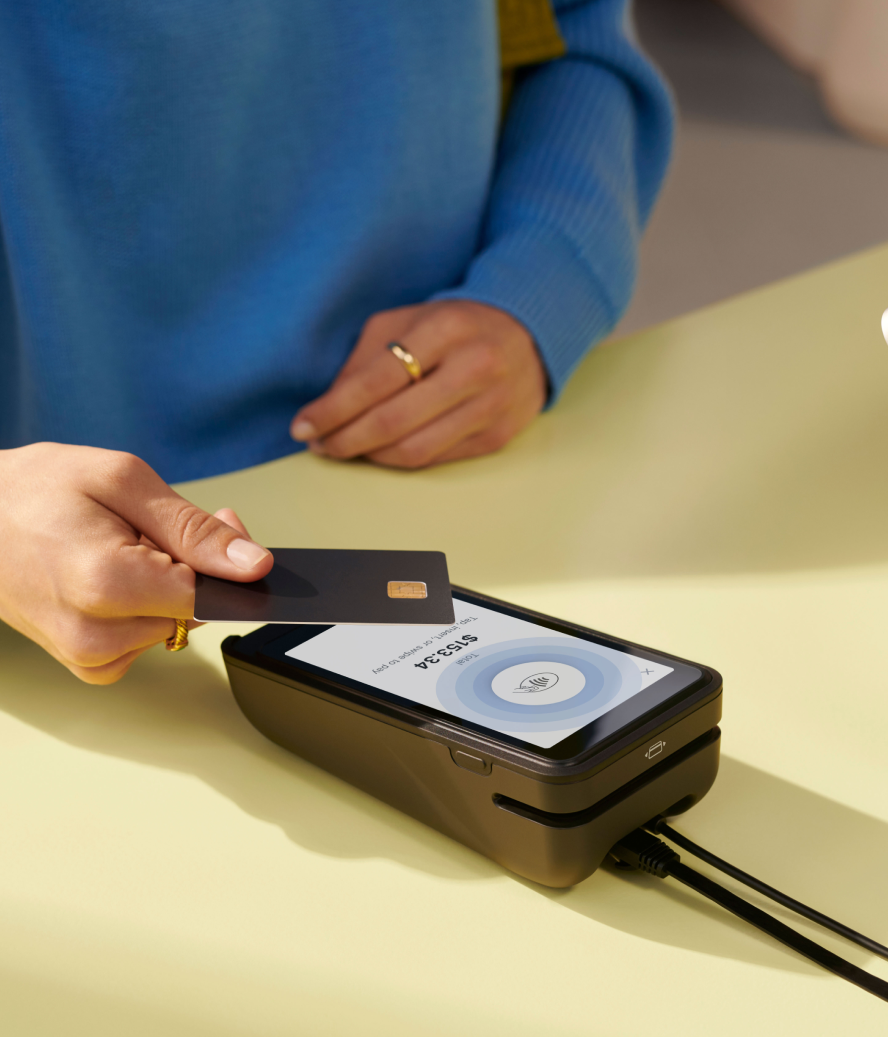
- Integrated payment terminal display. The card reader itself shows totals, prompts, and signature or tip options.
- Self-checkout or kiosk display. The entire checkout screen is a customer-facing display.
- Mobile or tablet checkout display. A tablet or handheld device is shown to the customer during checkout.
Information shown on a customer-facing display
A customer-facing display shows shoppers their transaction details as they occur. The screen can include:
- Order details. A list of purchases appears as the cashier processes the transaction.
- Pricing. Itemized costs include applied discounts or coupons.
- Taxes. The total tax amount owed for the order.
- Payment prompts. Instructions to choose a payment method and complete the purchase.
- Receipt options. Choices for paper or digital receipts sent via SMS or email.
- Custom thank-you message. Add a thank you message to display on the POS terminal when a transaction is completed.
Reasons to use customer-facing displays in retail
Customer-facing displays have benefits for retailers:
Improve the checkout experience
Checkout is a clear process with a customer-facing display. Cashiers charge for purchases while customers track items added to their total bill.
For example, if a customer adds two sweaters to their cart, they see the price for each item on the screen. They correct pricing mistakes, like assuming a sale applies when it doesn’t, during the transaction.
Collect customer data
Buyers enter their own email addresses and phone numbers on customer-facing displays during checkout.
Customers don’t have to dictate personal details to a staff member. The process builds a customer list for marketing campaigns and ensures customer data is accurate.
Ensure compliance
Customer-facing displays show shoppers required information or signature prompts before they complete a purchase. Shoppers review product specifications and terms directly on the screen.
In certain jurisdictions, customer-facing display requirements are explicit when transactions involve weighed or measured goods. Shoppers must be able to read the device’s indications during the sale.
For example, US weights-and-measures rules require devices to be positioned so a customer can accurately read the indications. Canadian rules demand a secondary customer display if the main display cannot be easily read by both the operator and the customer.
Speed up checkout
A customer-facing display shortens the time it takes to process an order, point out and correct purchase errors, and process contactless payments—the latter of which eliminates the need to pass cards, phones, or paper receipts constantly.
Tip: Use email capture inside Shopify POS to build unified customer profiles. It uses a customer’s payment data to identify and match a Shop Pay account.

If a match is found, the customer’s email address and phone number are automatically displayed at checkout—no manual entry is required.
Simplify checkout counter setup
Customer-facing displays integrate payment terminals, signature pads, and price screens into one unit. This replaces the need for separate hardware components and reduces cable clutter. Staff work more efficiently when they don’t have to navigate around extra hardware.
How to set up a customer-facing POS display
Setting up a customer-facing display involves hardware, software, and testing. Here’s a look at each step in more detail.
1. Set up a POS system
A point-of-sale (POS) system is the hub of a retail operation. Retailers use these systems to ring up orders, process payments, and sync inventory data.
If a customer-facing display is important to you, consider a system that supports an additional screen, such as Shopify POS.
2. Acquire compatible display hardware
POS systems include hardware to process transactions:
- Receipt printer
- Scanner
- Cash drawer
- Cashier-facing display
Checkout setups also include an iPad, a stand, and a card reader.
Retailers using an Android tablet with Shopify can download the Customer View app. It shows transaction details on a wireless customer-facing display.
3. Test your new setup
Set up the hardware and integrate the software, then test the system. Confirm the display records transactions and processes all accepted payment types.
Hardware setup can reveal pairing failures or unstable connections. These issues occur when devices use different SSIDs or apps run in the background.
Keep the Shopify POS and Customer View apps in the foreground to maintain a connection. If the connection fails, use these steps:
- Check network settings. Confirm both devices use the same local network and SSID.
- Update DNS providers. Switch the network DNS to Cloudflare or Google Public DNS if the system blocks local IP resolution.
- Verify hardware requirements. Use an Android tablet with a screen between seven and eight inches and running Android 7.0 or higher.
- Resync the app. Force-close the app or resync with the Shopify admin before attempting a reinstallation to preserve diagnostic data.
Features to look for in a customer-facing display
Retailers can evaluate displays based on several key factors:
Customizable screen
Select a customer-facing display that has a customizable POS dashboard.
Maybe you want to include the option to add a voluntary tip before finalizing a transaction. Perhaps you want to accept store gift cards by prompting customers to swipe their cards. A customizable customer-facing display system enables you to do that.
Tip: Shopify POS unifies customer, inventory, and order data. Customers earn loyalty points on online purchases and view rewards on the customer-facing display in-store. They do this without the extra integrations often required to offer personalized experiences.
Brand theming
Prioritize customer-facing displays with brand theming capabilities. Customize the interface with logos, brand colors, fonts, and imagery.
Displays that match seasonal promotions or highlight product images ensure customers experience your brand’s personality during checkout.

Portability
Mobile devices like Tap to Pay allow for portable computing. The same applies to displays. Wireless POS and customer-facing display setups support on-the-go checkout.
Compatibility and integrations
Retailers who process many transactions daily require a unified ePOS system that integrates with other apps.
Shopify is the only platform to natively build POS and ecommerce on the same system, eliminating the need for complex or patchy integrations to get the functionality you need.
Process payments, view customer data, and check inventory levels anywhere you sell, from one platform. This approach helps retailers reduce the total cost of ownership by 22% on average.
If you need out-of-the-box customization, the Shopify App Store is home to hundreds of apps compatible with Shopify POS. That includes:
- Loyalty apps like Marsello and Smile
- Customer feedback tools such as Grapevine and POWR
- Returns management platforms like Narvar
Tip: Use Shopify POS UI extensions to bring this functionality into your Smart Grid.
For example, with the Marsello app extension, cashiers can see how many loyalty points a customer has accumulated (both in-store and online) and redeem any rewards at checkout. All of this information can be displayed on a customer screen.
Do you need a customer-facing display at your store?
Customer-facing displays can improve transaction visibility and may be required in some jurisdictions, but they’re not necessary for every retailer. Whether they make sense depends on a store’s checkout setup, hardware constraints, and compliance needs.
With Shopify, you don’t need to overhaul your existing tech stack to implement a customer-facing screen at checkout. Use the Customer view app to turn any Android tablet into a customer display using the data already unified in your POS system.
Read more
- Merchant Services: Everything Retailers Need To Know
- Chip Credit Cards and Payment Transactions: What Merchants Need To Know
- Everything Store Owners Should Know About Retail Receipts
- EMV Chip Cards are Coming to the U.S. (Here's What Merchants Need to Know)
- What is an EPOS System and How Does it Work?
- What Is Near Field Communication? How to Use It and Why It’s Important
- Card on File Transactions: How to Process Subscriptions & Recurring Payments on Autopilot
- What is EMV and Why Should Merchants Use It?
- Tap to Pay: Everything You Need to Know as a Retailer
Customer-facing display POS FAQ
What is customer-facing information?
Customer-facing information shown on a retail POS system includes:
- Products purchase
- Taxes
- Payment options
- Receipt options
- Thank you messages
What is a point-of-sale customer display?
A POS customer display is a screen or monitor that faces the customer at the checkout desk. It provides customers with real-time information about their purchase, such as the items they’re buying, the price of each item, and any discounts applied.
How much does a POS display cost?
The cost of a POS customer display can vary significantly depending on the POS system and hardware you use. With Shopify, you can cut this cost by using an existing Android tablet as a customer-facing display with the Customer view app.
Which businesses benefit most from customer-facing displays?
Retailers selling weighed or measured goods benefit because these displays help them meet legal requirements in the US and Canada. Businesses looking to grow their marketing lists use the screens so shoppers enter their own contact details. High-volume stores also process transactions faster and reduce counter clutter with integrated units.
What are common challenges when implementing a customer-facing display?
Pairing failures occur when devices use different SSIDs or network names. Restrictive network settings can block the connection between the POS and the display screen. Keeping your POS apps in the foreground can keep the wireless connection strong.